
What does each VMKey Pocket button and port do? Use this guide to find the control you need and try it with your current profile.
Before you start
Connect VMKey Pocket to your phone with the supplied USB-C cable and open the Voicemod mobile app. Connect a headset to Pocket so you can hear the result as you test the controls. If you have not set it up yet, follow the VMKey Pocket Quick Start Guide.
Want to see each control on the device? Open the interactive Key Specs diagram and select a highlighted point. The sections below explain the same controls in detail.
Buttons and wheel
Six voice and sound pads
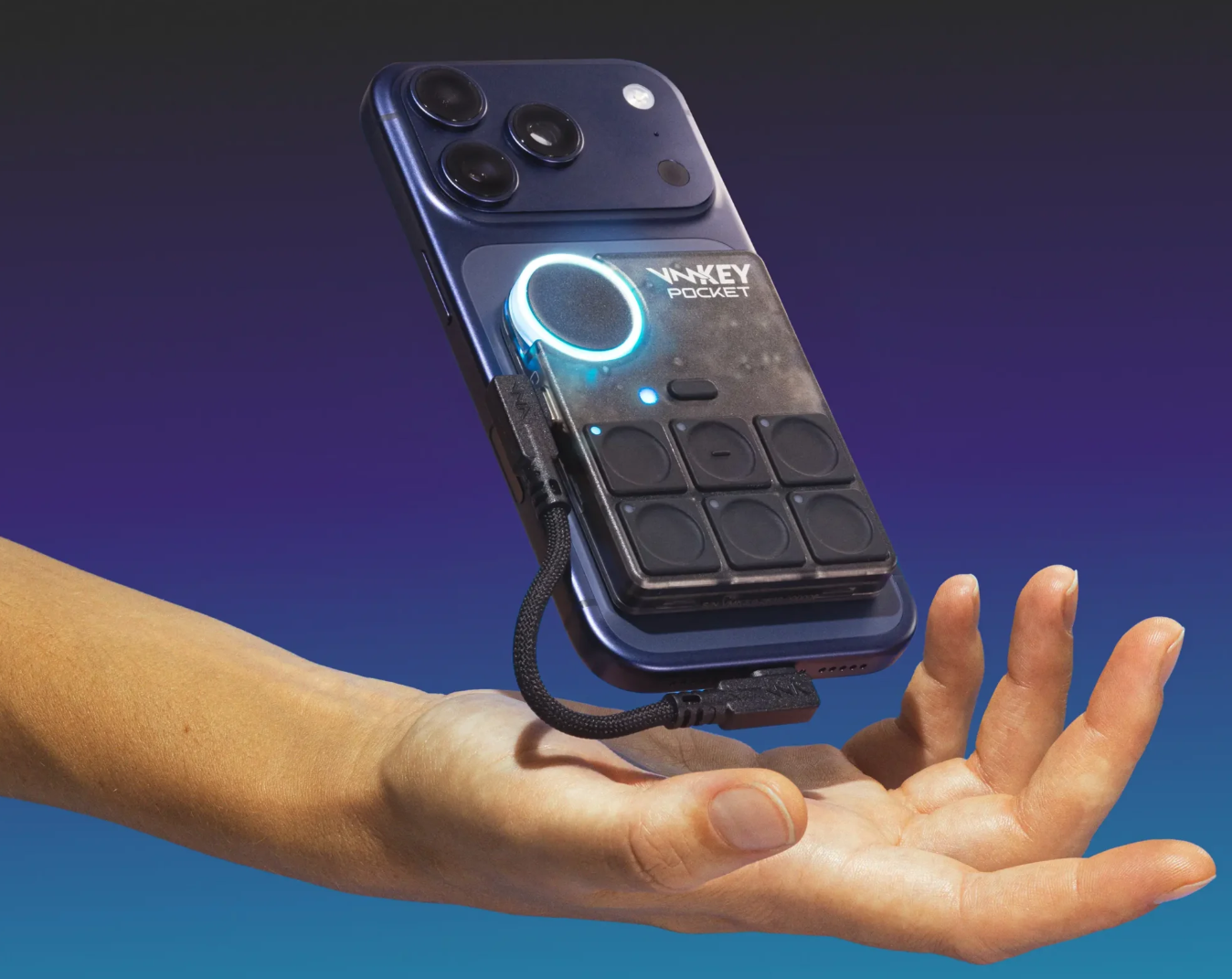
The six large pads match the six slots on your current profile page in the Voicemod app. Press a pad to activate its assigned voice or play its assigned sound. You can customize the pads in the app and organize up to six pages, giving you up to 36 voice and sound slots.
Press and hold a pad to change pages without leaving your game or call. To set up or change what appears on a page, see How to set up Profiles on VMKey Pocket.
Microphone mute button
Press the small button marked with a crossed-out microphone to mute or unmute your microphone. Use it when you need to stop sending your voice for a moment. This is different from turning the voice changer off: muting stops your microphone audio, while turning the voice changer off removes the voice effect.
Wheel: Hear Myself volume
Turn the large wheel to adjust how loudly you hear your own voice in your connected headset. This is the Hear Myself monitoring level. If your voice sounds too loud or too quiet to you, try the wheel first.
Wheel press: voice changer on or off
Press the center of the wheel to turn the voice changer on or off. Use this when you want to switch between your selected voice effect and your unmodified voice without changing the voice assigned to a pad.
Changing a profile? The active profile page can have its own name and color. You can set these in the app; the Pocket’s LEDs reflect the selected profile color. See the Profiles guide for the setup steps.
Connections and ports
USB-C phone connection
Connect this USB-C port to your phone or tablet with the supplied cable. The Voicemod app processes your voice on the phone and works with Pocket to send it to your game, call, or console. Pocket draws power from the phone, so the device itself does not need to be charged.
Headset jack
Connect a compatible wired headset with a microphone to Pocket’s 3.5 mm headset jack. Pocket uses the connected headset for listening and speaking; it does not use your phone’s built-in speaker or microphone. You can also set up compatible wireless headphones through the app.
Console connection
Use the console audio port and supplied audio cable to connect Pocket to a supported controller or console setup. Keep Pocket connected to your phone so the Voicemod app can process your voice. For cable placement and platform-specific steps, see How to connect your VMKey Pocket via cable.
USB-C charge-through port
Connect a charger to Pocket’s additional USB-C port to keep your phone or tablet powered during a session. This port is for charge-through; Pocket itself has no battery to charge.
Check a control in the app
- Open the VMKey Pocket section of the Voicemod mobile app.
- Select a profile page and look at the six assigned voice and sound slots.
- Press the matching pad on Pocket and check the response in the app and your headset.
- For a visual control reference, open ••• → Open VMKey Settings → Device Control.
A sound keeps playing?
Use the app’s Stop Sounds control. The physical controls listed above cover pad triggers, microphone mute, the monitoring wheel, and the voice changer toggle.
Still need help?
Let’s take a closer look
If a button or port does not respond as expected, contact our Support Team and include:
- Your phone and headset models.
- Your Voicemod app and VMKey Pocket firmware versions.
- Which button or port you are using and what happens when you use it.
- A short video showing the button press and the app’s response, if possible.