
Is your voice getting lower, falling down or dropping?
Please follow these steps to check this Volume Issues guide.
Is your voice breaking in and out, falling or cutting off?
Then, please, follow us in the next steps to try to solve this issue with your Noise Gate guide.
Are you using any Additional Audio Software to process your audio?
Volume Issues
- Open Voicemod.
-
After that, adjust the input microphone slider: talk in a good volume and make sure that the visual signal goes up until the volume indicator touches the line of dots, indicating the optimal levels your microphone should handle for best quality:
- The issue could also be related to external noise cancellation managed by Windows.
Go to Control Panel > Sound > Communications Tab and select this option in your system:
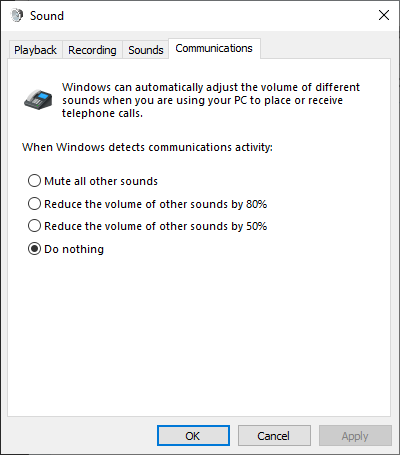
And finally, if you have an Enhancements tab inside your Microphone Properties or a Signal Enhancements option in the Advanced tab, disable all sound effects and/or disable the audio enhancements: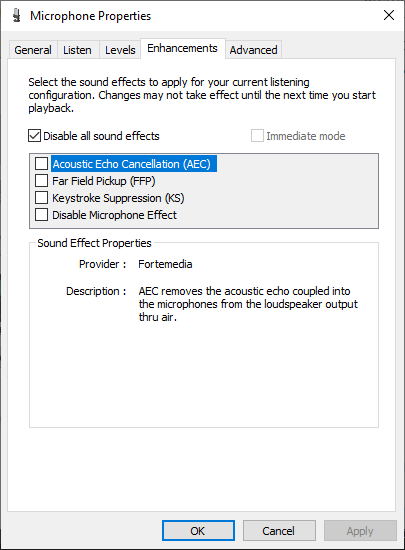
Are you using a HyperX headset?
Recently some people have discussed HyperX headset microphone volume too low. This is not a big problem and you can quickly fix it. Every HyperX model headset is different, so you’ll need to experiment with the settings to find what works best for you.
Please follow this advice: https://audiogr.com/hyperx-headset-microphone-volume-too-low
Noise Gate
If you notice that your voice drops and is cut off, it is probably due to a configuration problem with the noise gate.
Please follow these steps to check it:
Adjust the volume as previously mentioned:
Then, go to Advanced Settings on the bottom and check if the "Background Noise Reduction" or "Noise Gate" are enabled.
If they are, try disabling them and see how you hear yourself, then you can activate them in steps if you desire to use them, changing the Noise Gate Level to your preference.
And finally, if you have the Enhancements tab inside Microphone Properties, disable all sound effects:

If the problem still persists:
- Go to the "Sounds" menu (right-click on
 ):
):
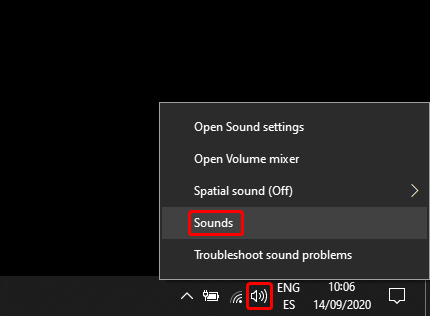
Select your microphone as the default input device in Windows.
Click on your microphone and click on "Set Default":
Also, please make sure that your Windows Volume Mixer is set high enough for Voicemod:
It is also possible that your Windows installation supports the "Studio Mode" feature; this implements a noise reduction filter that can cause issues with Voicemod sounds and Voices.
Make sure to disable it:
Disable the "Voice Focus" feature:
In addition, this problem could also have something to do with your Discord settings:
Disclaimer: Discord Test within the Audio Settings is currently not properly working in some situations. Please, test it directly on call.
- Go to settings > Voice & audio > Advanced and disable all these options and set Standard as the audio subsystem.
If all this doesn't work out, make sure your headphones/microphone or other software you are using doesn't use any additional software that may have the noise suppression filter included.
Additional Audio Software installed
If all those steps above doesn't work out, then let's make sure your headphones/microphone doesn't use any additional software that may have the noise suppression filter included.
If after that you still have issues with the volume, it could be an issue related to the Windows mixer. Read this article to find out how to reset it.
Need more help? Click HERE